UI-TARS spreadsheet row edits: update three statuses and verify every cell
Target records by their IDs, change only Status, then compare the exported file with the original. This exercise uses 12 dummy inventory records. Only RowID 003, 007 and 011 should move from Pending to Reviewed; all other values must stay exactly the same.
One precise instruction can make repeated status updates easier to specify. The fixture and checker make accidental edits visible, so you can judge your own run before using the workflow elsewhere.
31 October 2026 result: preflight stopped at an unavailable local test endpoint. No model run started, and the observed worksheet stayed unchanged. The expected file below is a reference prepared from the edit rule. The prompt and verification steps are ready for a run with a compatible endpoint.
1. Start with the dummy inventory
Download the original fixture CSV and keep it unchanged. Make a working copy for the editor. The columns are RowID, Item, Category, Quantity, Shelf and Status; all 12 starting statuses are Pending. The records contain synthetic office supplies, with no customer or personal data.
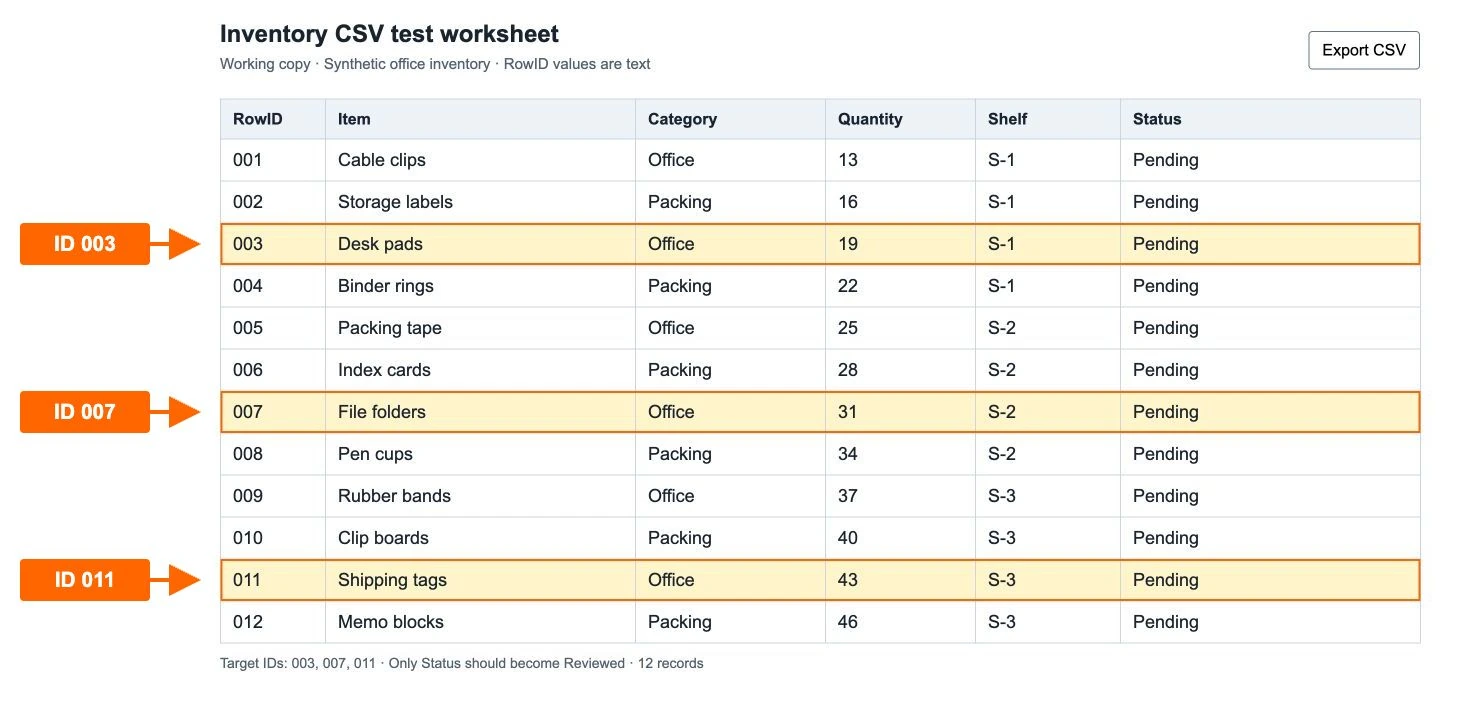
Import RowID as text and confirm that you see 003, rather than 3. CSV quoting alone does not guarantee an editor will preserve leading zeros. Keep the original order and turn off filters before starting.
2. Prepare the app and a working copy
- Install UI-TARS Desktop and configure a compatible model endpoint using the model configuration guide.
- Verify the model connection and required operator permissions using the Desktop setup guide. Use the documented single-monitor setup.
- Open the working CSV in an editor that preserves the text IDs. Keep only the test worksheet in the task workspace.
- Check all 12 records and six headers before handing over control. Keep a copy of the original outside the working file.
Provider inference can carry usage or hosting costs. Set your own limit where available and begin with this small fixture. Record your app, OS, provider and model with the run so the result can be repeated.
3. Use this exact row-edit prompt
Focus the working worksheet, start a Local Computer Operator chat and use the instruction below. RowID identifies a record; spreadsheet row numbers include the header and can change after sorting.
In the open inventory worksheet, find records by the RowID column, not by spreadsheet row numbers. For RowID 003, 007 and 011, change only the Status cell from Pending to Reviewed. Preserve all 12 records, their order, the headers, leading zeros in every RowID, and every other cell exactly. Do not sort, insert or delete rows or columns. Stop if a target ID is missing or duplicated. Do not edit any other document or send data anywhere. Leave the worksheet open and stop after the three edits so I can inspect and export it.
Start a timer when you submit the prompt. Watch the run and stop it if it edits a different field, changes row order or leaves the test worksheet. When the agent stops, inspect the three statuses and export the working data as a new CSV for verification.
4. Check the expected differences
The expected-after CSV is the acceptance reference. It was generated from the three requested edits, independently of the blocked model run.
| RowID | Original Status | Required Status |
|---|---|---|
| 003 | Pending | Reviewed |
| 007 | Pending | Reviewed |
| 011 | Pending | Reviewed |
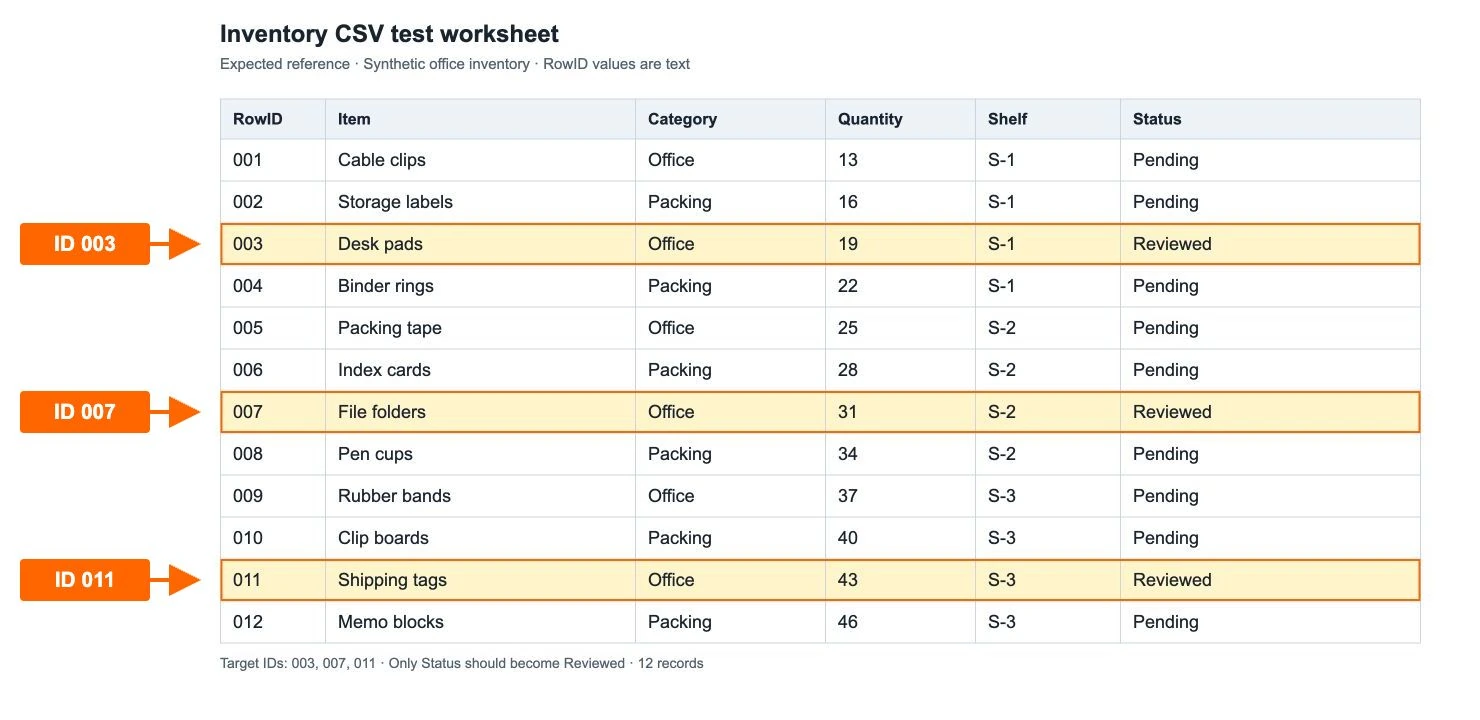
A correct export has exactly three changed data cells, 69 unchanged data cells and nine completely unchanged records. The six headers, all 12 IDs and their order must also match.
5. Recorded outcome: blocked before model execution
The inspected app was Desktop 0.2.4 on Apple silicon with macOS 26.6.2. Its settings retained http://127.0.0.1:4341/v1 and local-fixture-model from a prior protocol test. A TCP preflight found no service listening there. A protocol fixture is not a live vision-model deployment.
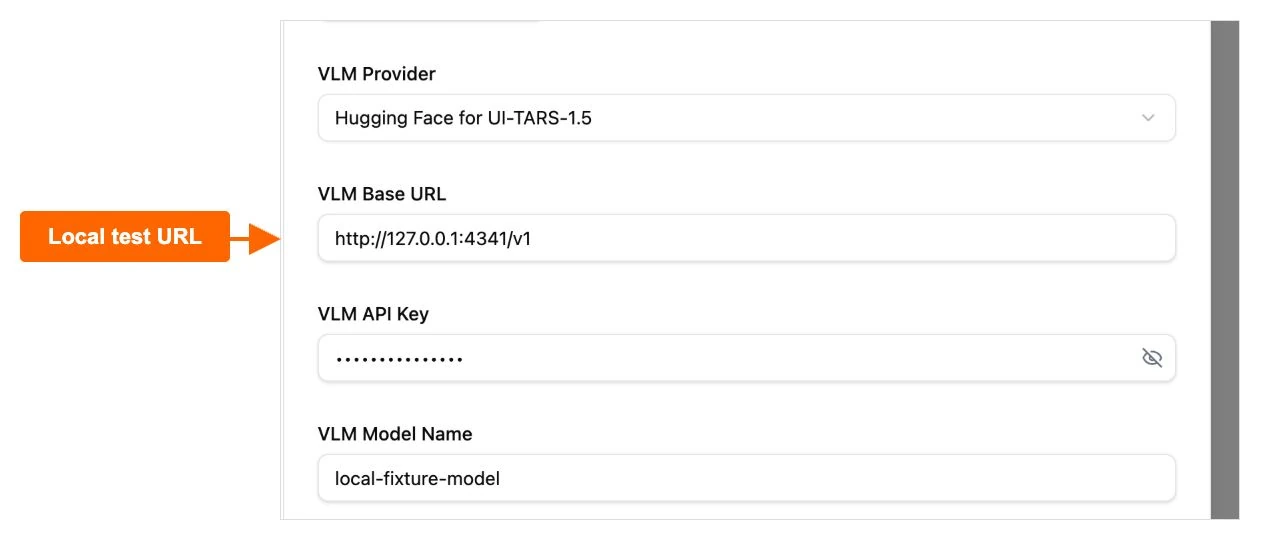
The exact prompt was prepared but was not submitted to a model. No model request, autonomous row edit, retry or manual correction followed. The observed unchanged CSV comes from the local working worksheet captured after the preflight blocker; it is not an agent-generated export.
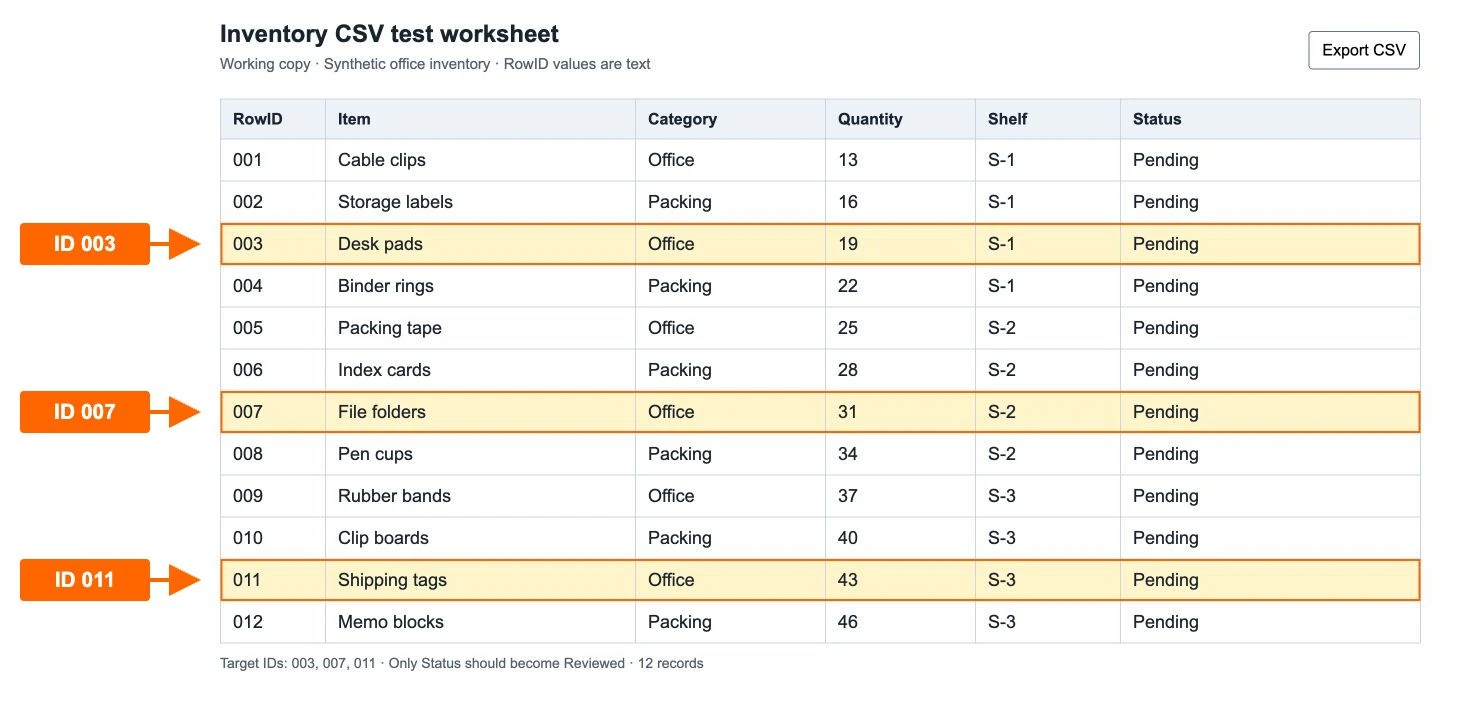
| Check | Observed result |
|---|---|
| Data / header cells checked | 72 / 6 |
| Actual changed data cells | 0 |
| Missing requested changes | 3 · IDs 003/007/011 remain Pending |
| Unexpected changes | 0 |
| Unchanged records / preserved IDs | 12 / 12 |
| Preflight blockers | 1 · configured test endpoint unavailable |
| Completed model runs / retries | 0 / 0 |
| Manual corrections | 0 |
| Model-run elapsed time | Unavailable · model run did not start |
| TCP preflight elapsed time | 0.0025 seconds · connectivity check only |
Download the observed comparison report and preflight/run log for the recorded outcome. The connectivity timing is not an automation-speed measurement. A completed run is still needed to measure time saved or editing accuracy.
6. Verify every exported cell
Download the local CSV checker. It uses Python 3’s standard library, reads the two files and prints a JSON report. It does not edit them or send data to a service.
Save your exported working file as your-after.csv, place it beside the checker and untouched fixture, then run this command from that folder where python3 is installed:
python3 verify-row-edits.py fixture.csv your-after.csvThe checker compares all 72 data cells and six headers, plus record count, IDs and order. Success requires exactly the expected file contents. It flags missing updates as well as extra edits; checking only the three target statuses would miss damage to neighboring data.
You can test the checker itself with the supplied files: use expected-after.csv as the second filename for a passing reference, or observed-after.csv for the recorded failing case. Exit code 0 means the complete comparison passed; code 1 means differences remain, and code 2 means the inputs could not be checked.
Recover without hiding a failed attempt
- If the endpoint is unavailable, finish model configuration before submitting the prompt again.
- If IDs lost their leading zeros, reopen the original with RowID imported as text. Check all 12 IDs before retrying.
- If the agent changes another column, sorts records or leaves a target unchanged, stop and retain that failed export.
- Reset a fresh working copy from fixture.csv, repeat the same prompt and give the retry a new filename. Record its elapsed time separately.
- Keep any manual correction in a separately named file and label it as manual. Run the full checker again before using the result.
The aim is a repeatable, inspectable status-update workflow. Keep the original, the actual export and the comparison report together, then return to the UI-TARS examples for the next task.
75-second demonstration storyboard
The downloadable storyboard plans a factual walkthrough: 0–10s show the original; 10–20s identify the three IDs and neighbors; 20–35s show the prompt and prerequisites; 35–45s show the real endpoint blocker; 45–60s distinguish the expected reference from the unchanged observed file; 60–75s show the checker and recovery steps. Completed agent-edit footage can be added after a live run.
Fixture, captures and preflight: 31 October 2026. Worksheet images are real captures of a local HTML CSV test worksheet, not Excel or Google Sheets. Expected values come from the supplied edit rule; no screenshot values were changed to imply agent success. Setup guidance follows the official UI-TARS Desktop quick-start and settings documentation reviewed 31 October.