UI-TARS Desktop setup: install, connect a model and start your first task
To set up UI-TARS Desktop, download the installer for your operating system, open the app and connect a compatible model endpoint. After the connection check succeeds, choose the computer or browser workflow and give it one small task. The app and the model endpoint are the two parts you need.
This guide uses Desktop 0.2.4. Mac installation and settings were inspected on Apple silicon with macOS 26.6.2. Windows and Intel Mac instructions are documented-only. Model connection and task execution are the steps to complete with your own endpoint.
Before you start: have these ready
Begin with the computer you want to use and a compatible model deployment. Preparing the connection details now makes the settings steps easier to finish in one visit.
- Your OS and processor: Windows, Mac with Apple silicon, or Mac with an Intel processor.
- A model endpoint: its Base URL, API key and exact model or deployment name. Check the provider’s current availability and costs before creating a deployment.
- One monitor: the project’s quick start describes a single-monitor setup.
- A supported browser for Browser Operator: Chrome, Edge or Firefox.
- A blank scratch document: use it for a small first task after setup.
If you are still arranging a model endpoint, you can install the app and find the settings first. Then return to the connection fields once your deployment is ready.
1. Choose the correct UI-TARS Desktop download
Find the bytedance/UI-TARS-desktop repository on GitHub, open Releases and select the v0.2.4 Desktop release. Expand Assets and match the filename below to your computer. The repository also releases Agent TARS CLI packages, so check the asset name rather than relying on a “latest” label.
| Computer | Installer | Guide coverage |
|---|---|---|
| Mac · Apple silicon | UI-TARS-0.2.4-arm64.dmg | Installation and settings inspected |
| Mac · Intel | UI-TARS-0.2.4-x64.dmg | Documented-only |
| Windows | UI-TARS-0.2.4-Setup.exe | Documented-only |
| Linux | No Linux installer listed in this release | Release asset check |
On a Mac, Apple menu → About This Mac shows the chip or processor. Choose arm64 for Apple silicon and x64 for Intel. On Windows, choose the Setup.exe file. The .yml files and source-code archives serve other purposes; use the installer matching your OS.
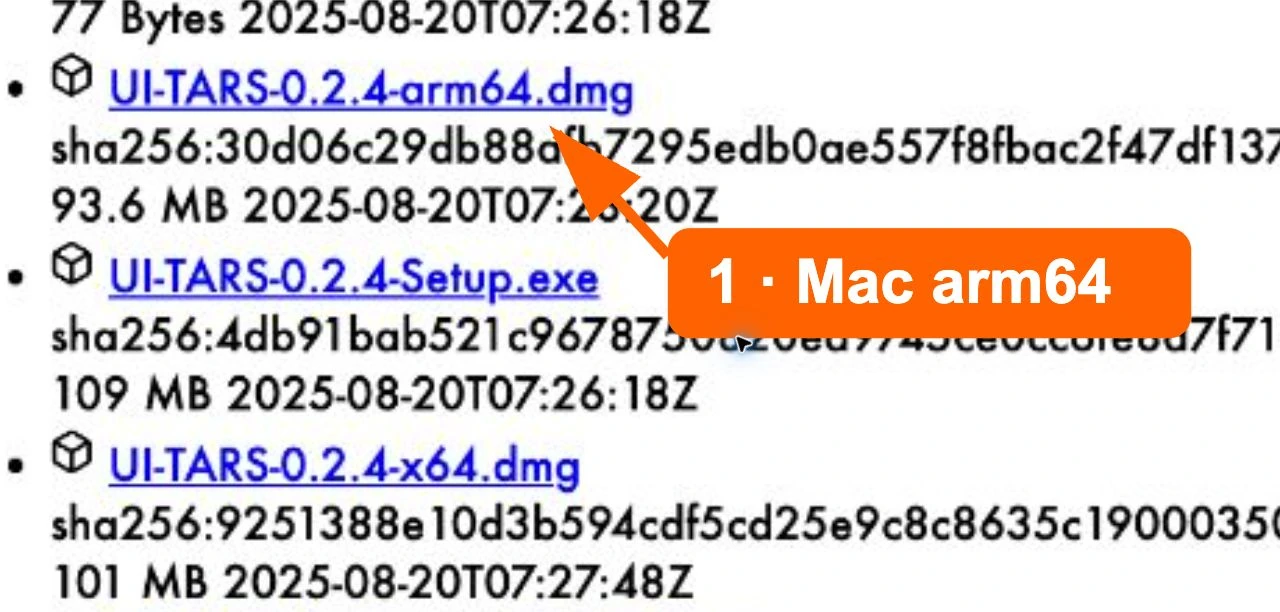
Once the file finishes downloading, follow the installation section for your OS. Both paths lead to the same provider and connection settings later in this guide.
2A. Install UI-TARS Desktop on Mac
Open the downloaded .dmg. The window contains the UI TARS app on the left and an Applications shortcut on the right. Drag UI TARS into Applications, then open the app from that folder.
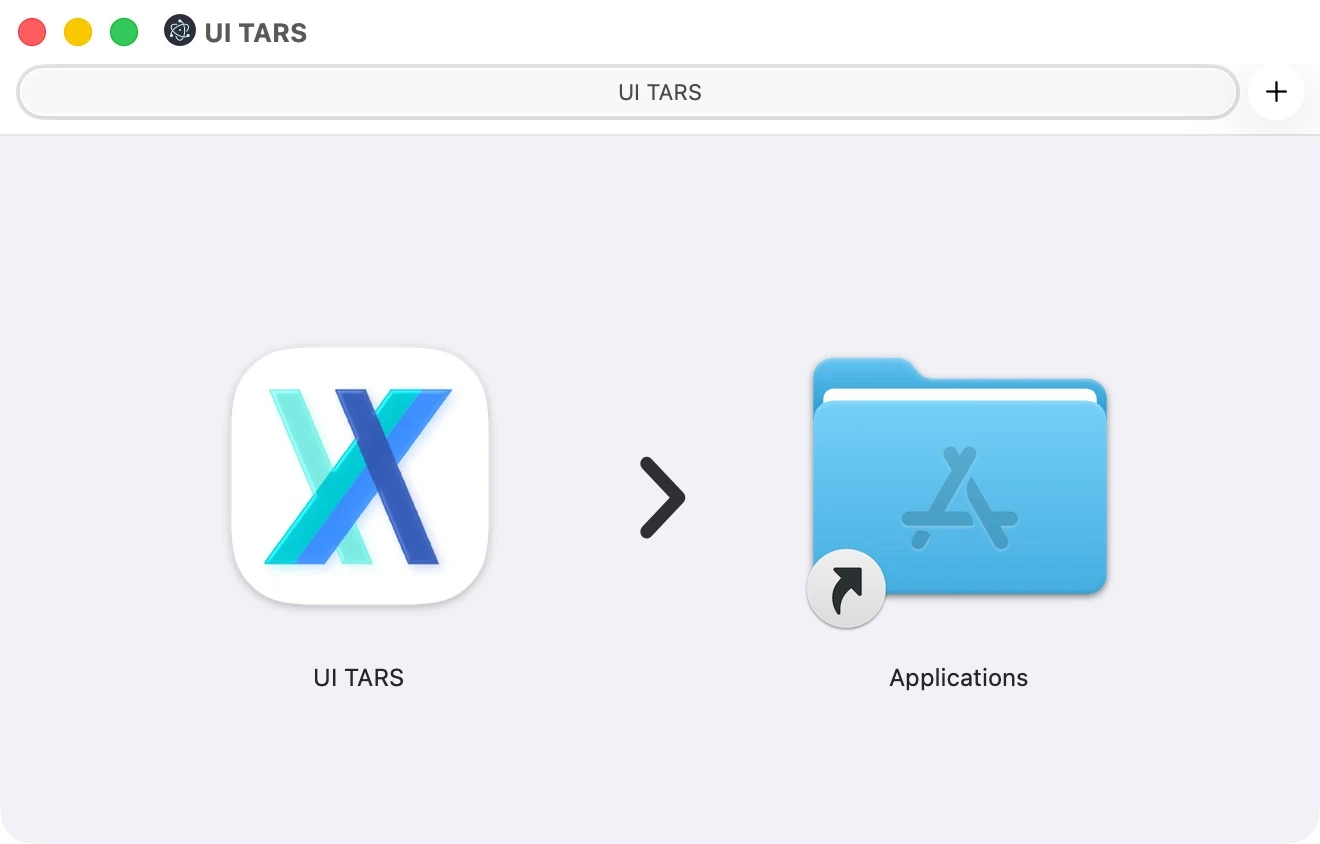
The Apple silicon app opened successfully in the local inspection. The Intel Mac uses the x64 installer; its installation instructions here are documented-only. With the app installed, review the Mac permissions before moving to Settings.
Mac permissions for computer control · documented guidance
Open System Settings → Privacy & Security → Accessibility and review access for UI TARS. Then open the screen recording permission category and review UI TARS there too. The category’s wording can vary with your macOS version. Follow any system prompt to reopen the app after changing access.
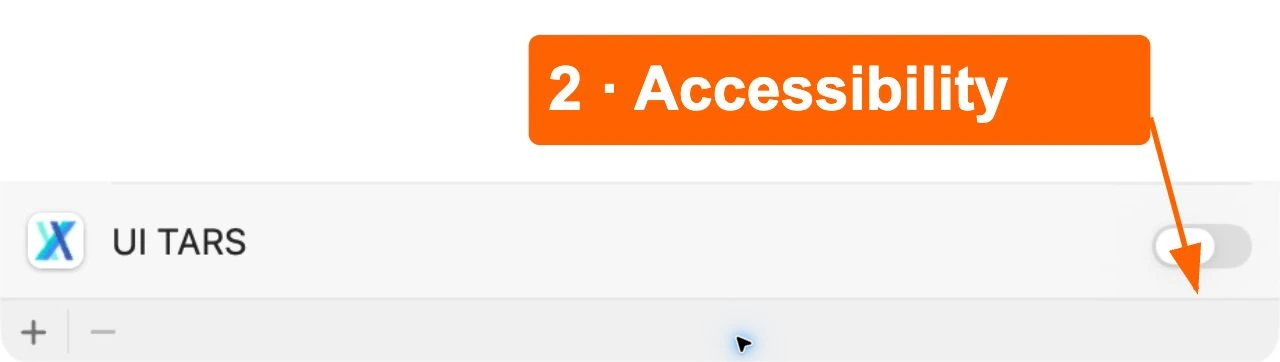
These permissions let the computer workflow observe the screen and operate controls. Once you have reviewed them, continue to Open Settings.
2B. Install UI-TARS Desktop on Windows · documented-only
Download UI-TARS-0.2.4-Setup.exe from the v0.2.4 release assets, then open it and follow the installer prompts. Confirm that the filename and download source match the Desktop release before proceeding.
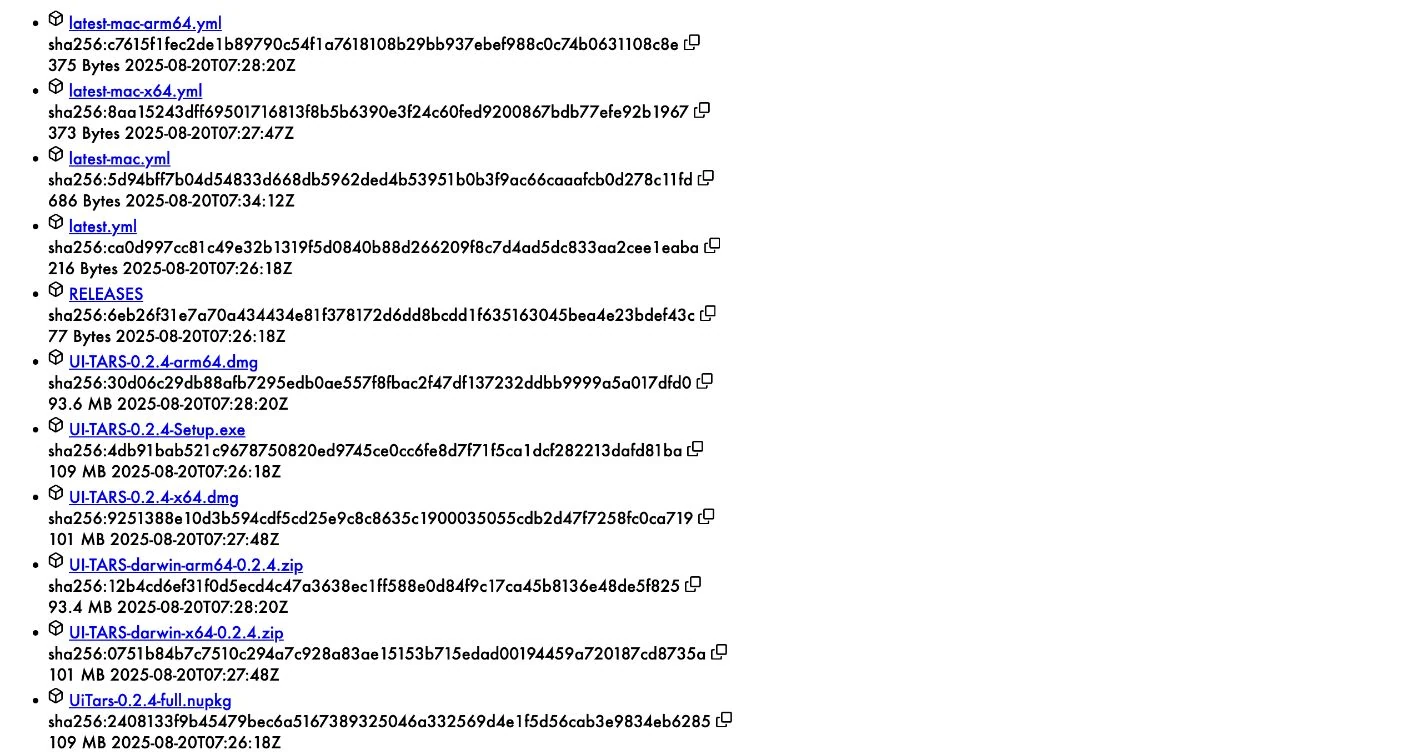
Open UI-TARS Desktop after installation. The remaining settings instructions use Mac screenshots to show the field names and workflow. Use the matching controls in your Windows app and continue with the provider configuration below.
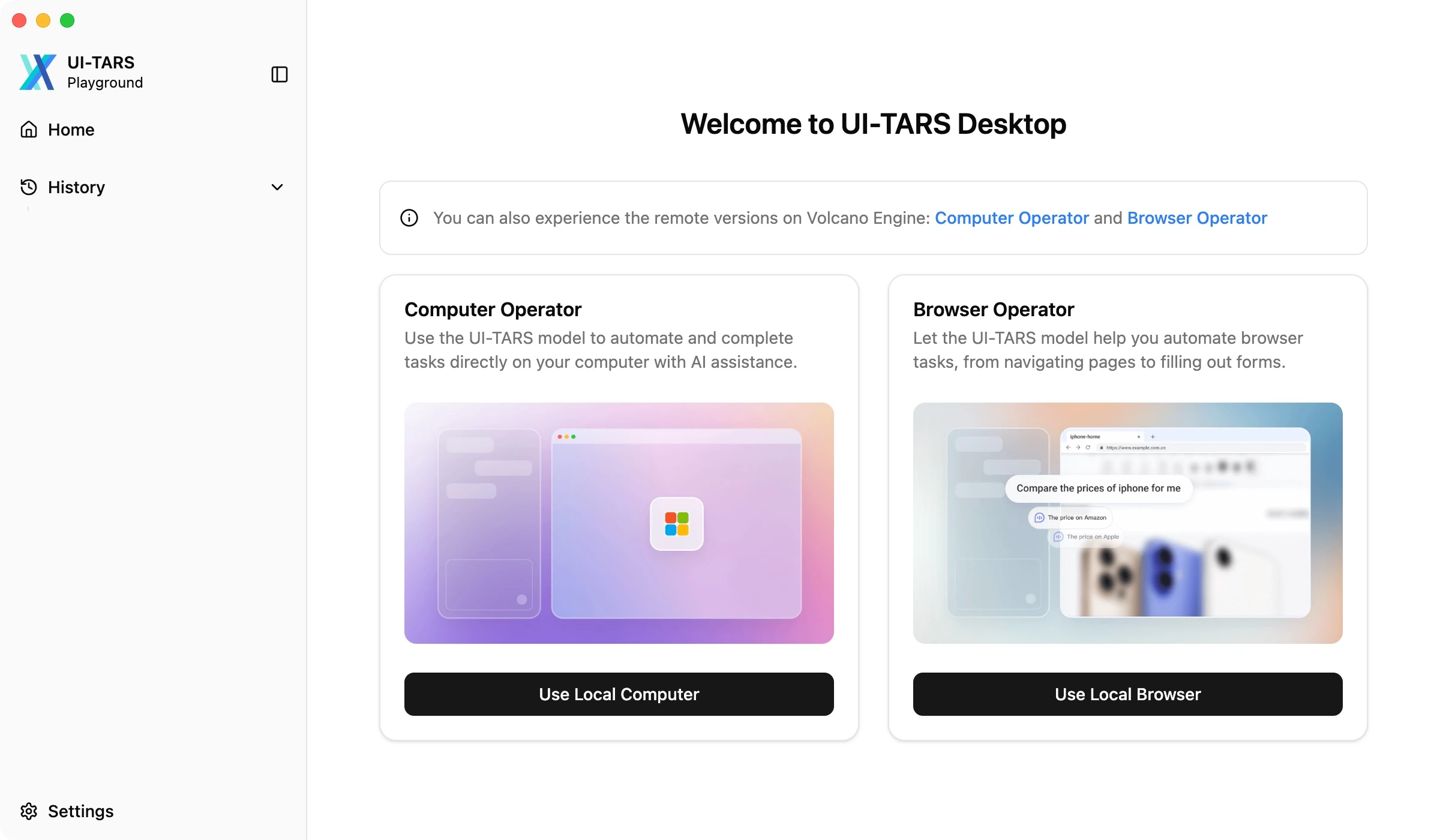
3. Open Settings and find VLM Settings
From the welcome screen, select Settings in the bottom-left corner. This is where you connect the model before asking the app to act on your computer or browser.
Open VLM Settings. VLM stands for vision-language model: the model interprets screenshots and supplies the actions used by the workflow. Start with the provider selector, then fill in the deployment details.
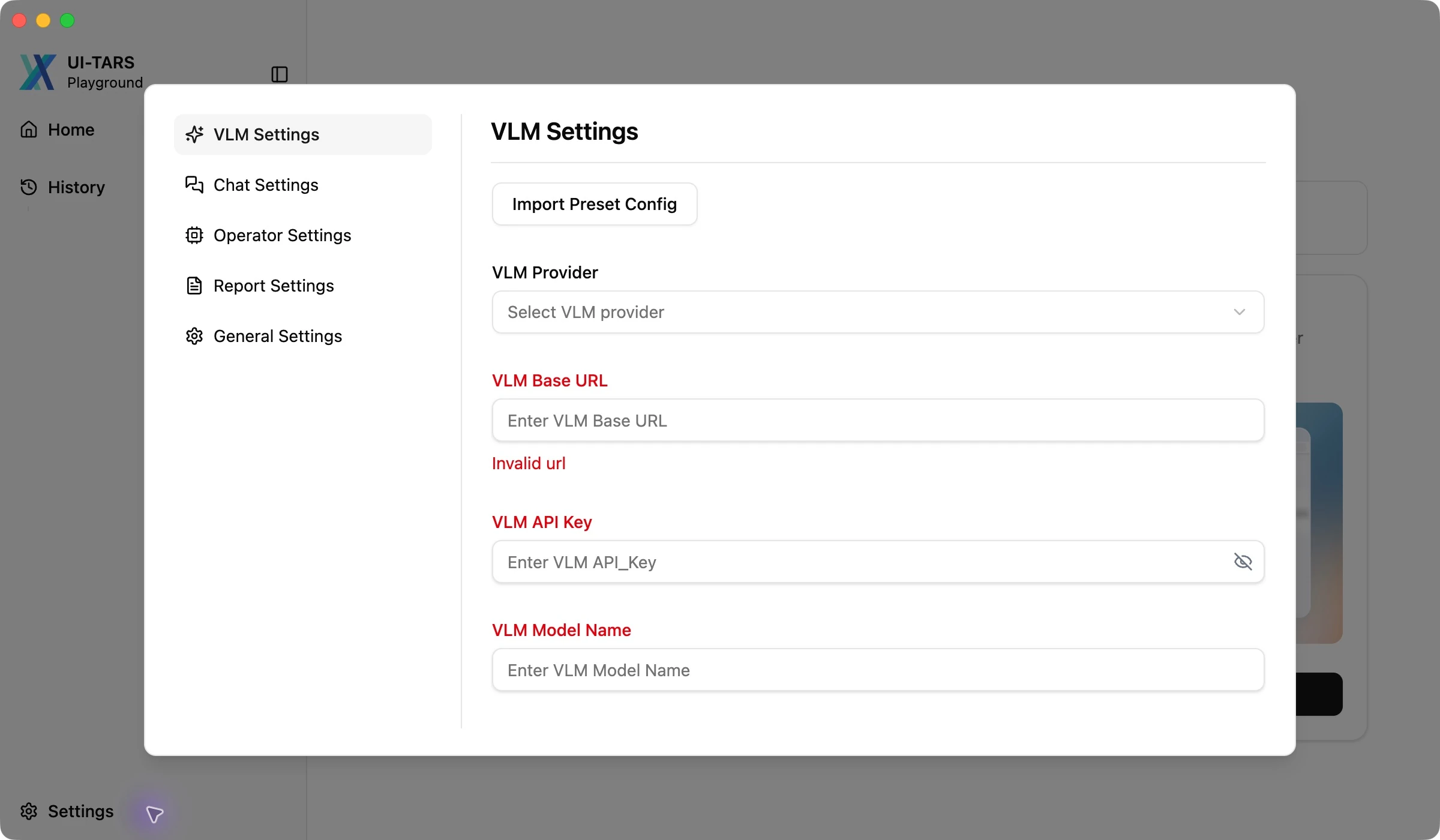
4. Match the provider to your model deployment
Open VLM Provider and choose the preset for your deployed model. Desktop 0.2.4 includes Hugging Face presets for UI-TARS-1.0 and UI-TARS-1.5, plus VolcEngine Ark presets. Matching this selection matters because it determines how the app interprets model actions.
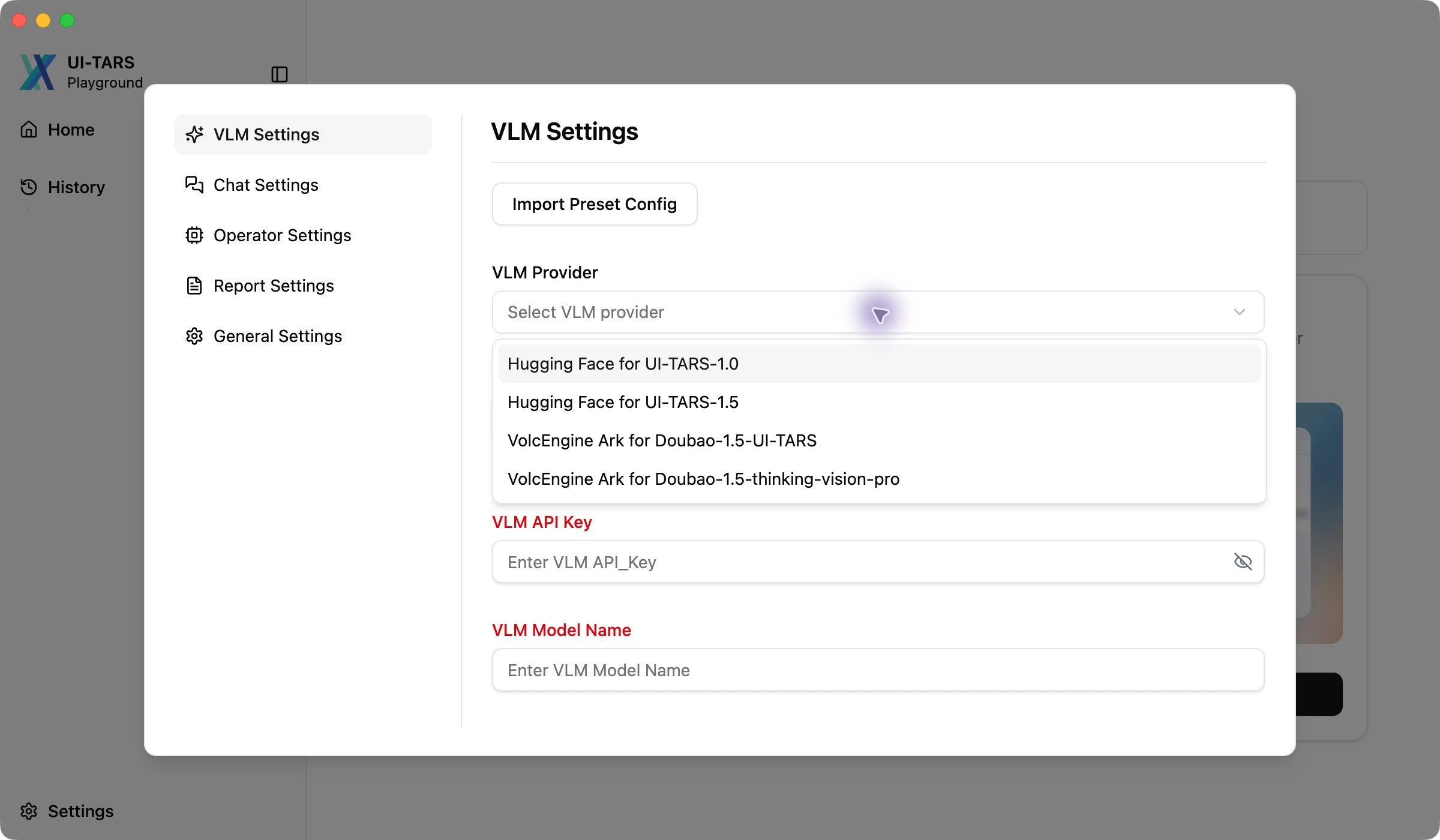
For a UI-TARS-1.5 deployment on Hugging Face, select Hugging Face for UI-TARS-1.5. Use the provider’s current endpoint configuration to obtain the URL, credential and model identifier. A preset in the app identifies the integration; your provider dashboard supplies the live deployment details.
If you need to deploy the model first, find the UI-TARS model repository’s README_deploy.md and follow the instructions for your infrastructure. Once the endpoint is ready, return here to connect it.
5. Enter the Base URL, API key and model name
With the correct provider selected, copy the following values from your model deployment into VLM Settings:
- VLM Base URL: the inference endpoint URL. For the Hugging Face UI-TARS-1.5 integration, the quick start specifies a URL ending in
/v1/. - VLM API Key: the credential authorized for that endpoint. Keep the field concealed when sharing a screenshot.
- VLM Model Name: the exact model or deployment identifier expected by the endpoint.
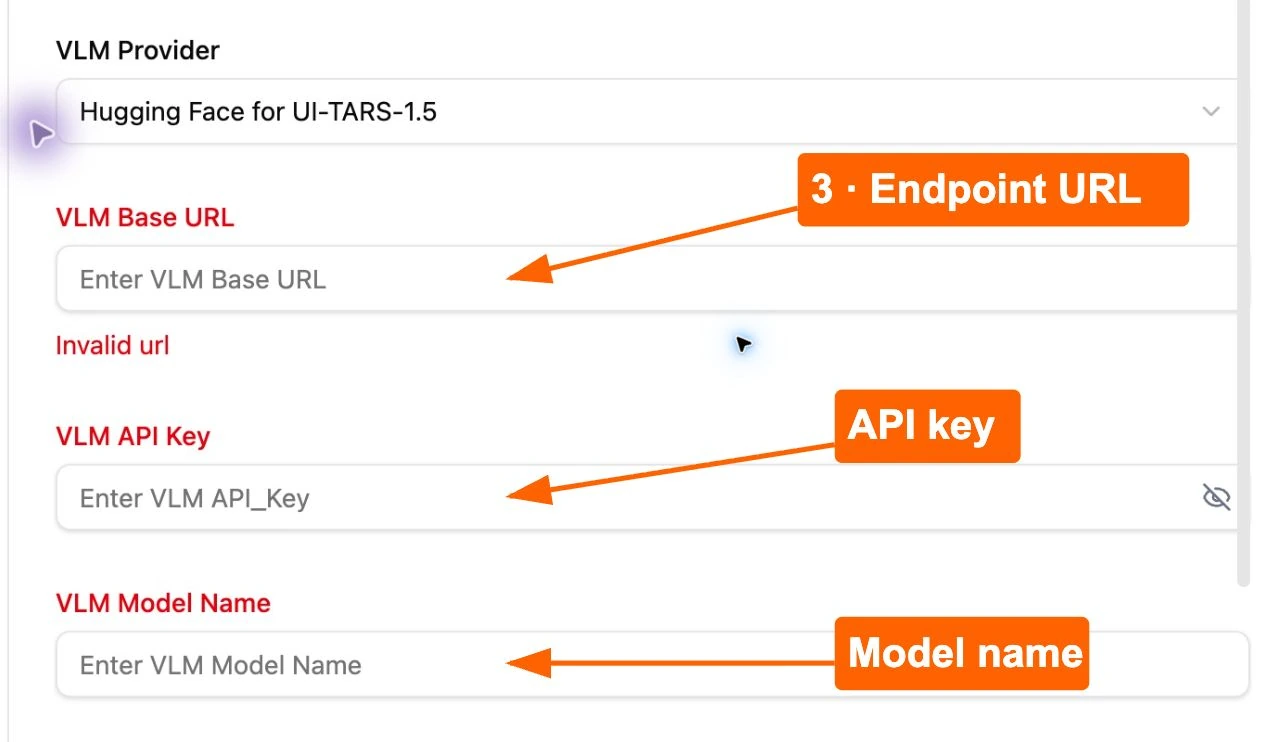
Check the URL path and model identifier against the provider’s configuration before continuing. Keep Responses API aligned with the API your endpoint supports; enable it only when that integration calls for it. You are now ready to check the connection.
6. Check that the model is available
After completing the required fields, select Check Model Availability. Wait for the result and resolve any connection error before starting a task. A successful connection check is the point at which to move on to the operator workflow.
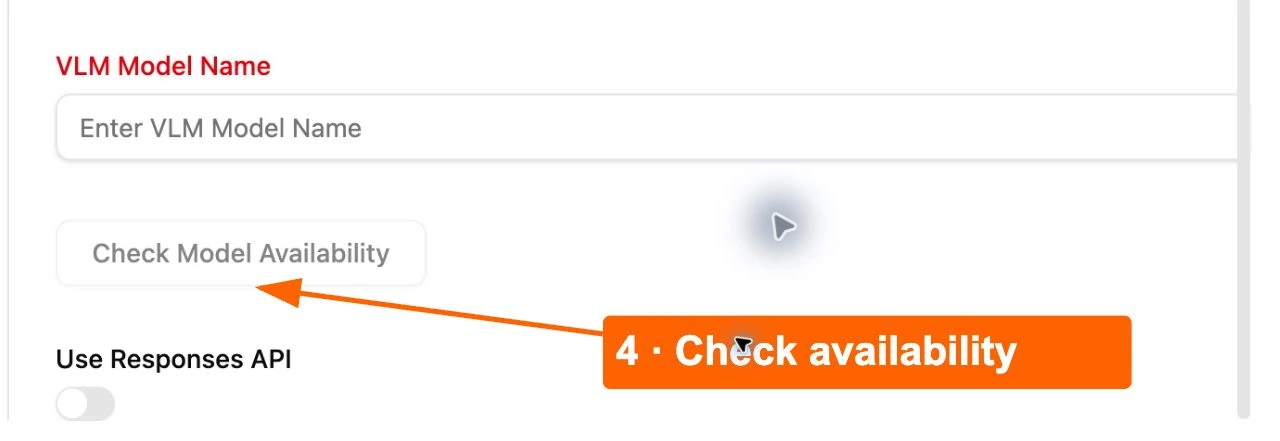
If the button stays disabled, review the three required fields. If the request returns an error, check the endpoint path, credential permissions and model identifier together. This keeps the next step focused on the task rather than connection troubleshooting.
7. Choose an operator and start one small task
Return to Home after the availability check succeeds. Choose Use Local Computer for a task in a desktop app, or Use Local Browser for a browser task. For the first check below, use the computer workflow with a blank text document already open.
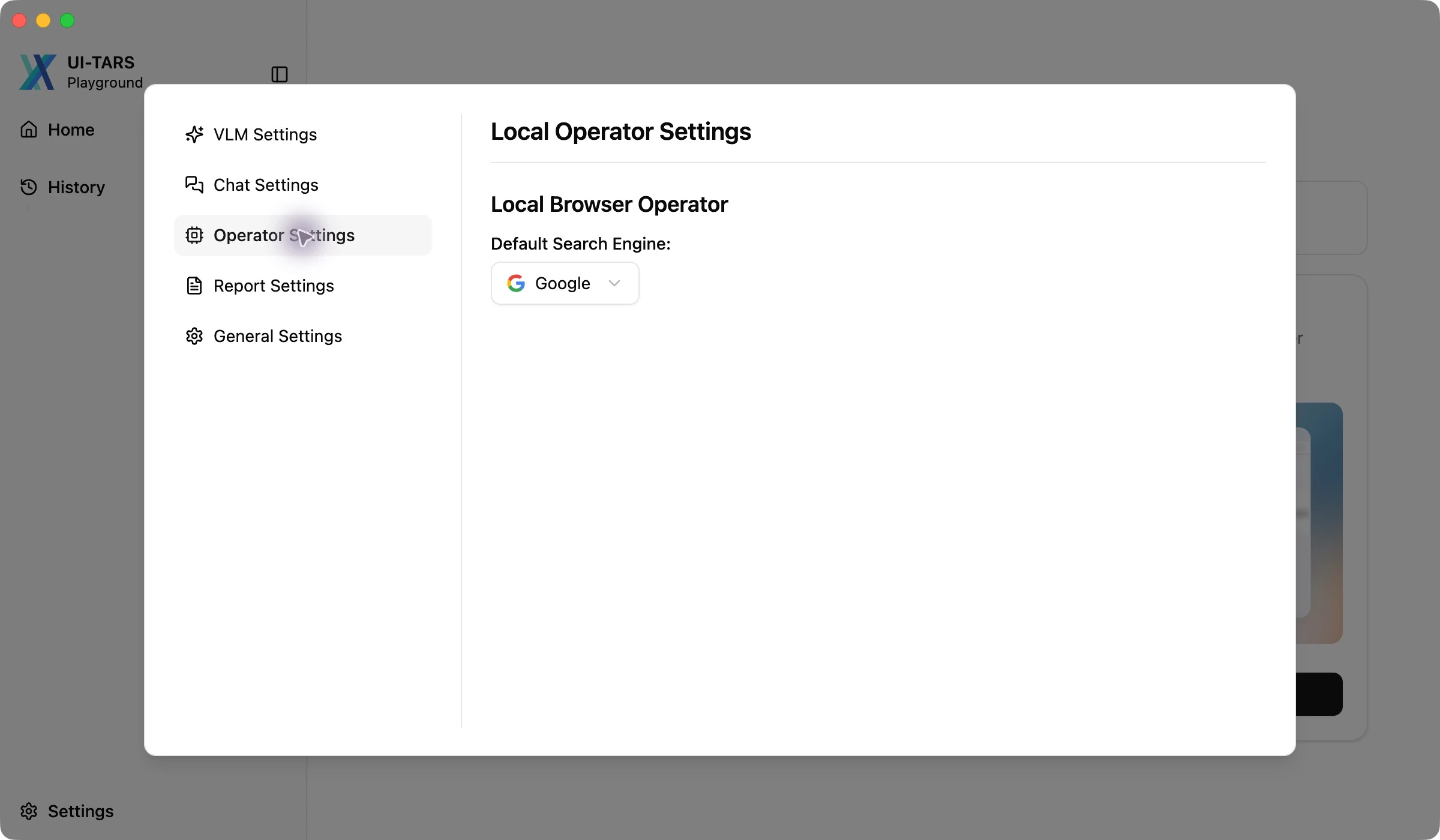
For browser tasks, install Chrome, Edge or Firefox first. You can review the default search engine in Settings → Operator Settings before beginning that workflow.
Prepare a simple first instruction
Once the model check and required OS permissions are ready, open a blank scratch document. In the computer workflow, start a new chat and enter a short instruction with one visible outcome:
In the open blank document, type “UI-TARS setup check”. Do not save, open other apps or send anything. Stop after typing.
Look for the exact text in the document and confirm the agent stops. That is the expected result for this suggested check. A connected endpoint is required to perform it; the raw screens in this guide cover installation and settings preparation.
If the cursor goes to the wrong place, stop the task, check the single-monitor setup and repeat the same small instruction. Once it behaves reliably, choose a useful next task from the UI-TARS examples.
Your UI-TARS Desktop setup checklist
Use this short checklist to finish setup or share the steps with someone setting up the same app:
- Match the v0.2.4 installer to your OS and processor.
- Install the app and open Settings → VLM Settings.
- Choose the preset matching your deployed model.
- Enter the endpoint Base URL, API key and exact model name.
- Complete Check Model Availability successfully.
- Review the required Mac permissions and use one monitor.
- Choose a local operator and verify one small scratch-document task.
Keep the OS, Desktop version, provider and model identifier with your setup notes. Those details make it easier to repeat a working configuration or explain an error later.
Watch the setup screens in sequence
This 42-second walkthrough uses the raw installer and settings screenshots from the Mac inspection. Use it alongside the steps above to locate each control.
Documentation reviewed 27 October 2026: UI-TARS Desktop quick-start.md, setting.md and v0.2.4 release assets. Screenshots come from the local Mac installation, settings and permission-control inspection; orange callouts identify the controls used in each step.